












Developing a Power Apps code app on the Microsoft Power Platform enables developers to create custom applications that integrate seamlessly with business processes.
In this blog post, we explain how to build a Power Apps code app from scratch using the Power Platform command-line interface (CLI) and a TypeScript template. This approach is ideal for developers who want to build low-code but powerful apps with full control over code and design.
A Power Apps code app is a specialized application type that gives developers the flexibility of working with code (TypeScript, Node.js, CLI tooling) while still leveraging Power Platform capabilities. These apps are currently in preview and are designed for advanced use cases outside traditional drag-and-drop canvas apps.
Prerequisites for your Power Apps Code App
Before getting started, ensure you have the following installed on your machine:
- A Power Platform environment with code apps enabled
- Node.js (LTS version) installed
- The Power Platform CLI (pac CLI) installed
- Git installed on your machine
Step-by-Step: Create a Power Apps Code App from Scratch
1. Set Up Your App Template
Open a terminal or command prompt and run the following commands.
					<pre style="background: #f4f4f4; padding: 15px; border-radius: 5px; font-family: monospace;">
npx degit github:microsoft/PowerAppsCodeApps/templates/vite my-app
cd my-app
</pre>
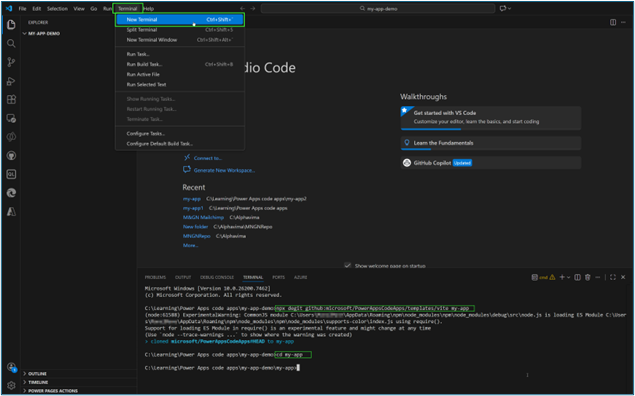
This creates a new project folder for your Power Apps code app from a Vite template and moves into that directory (as shown below).
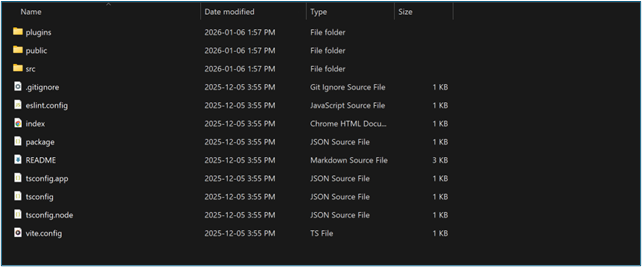
2. Authenticate Using Power Platform CLI
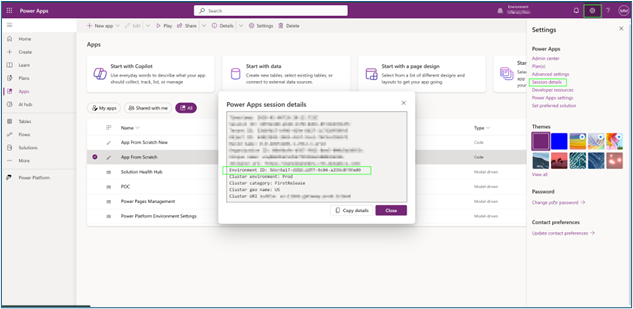
Authenticate the CLI to connect your Power Apps code app environment is connected to a valid environment. Run the commands below and sign in using your Microsoft Entra identity. (your Power Platform work or school account).
					<pre style="background: #f4f4f4; padding: 15px; border-radius: 5px; font-family: monospace;">
pac auth create
pac env select --environment {environment id}
</pre>


3. Install Dependencies and Initialize the Code App
Next, install the required packages and initialize your code app with a display name. This step configures the project and prepares it for local testing.
					<pre style="background: #f4f4f4; padding: 15px; border-radius: 5px; font-family: monospace;">
npm install
pac code init --displayname "App From Scratch"
</pre>

4. Run Your Power Apps Code App Locally
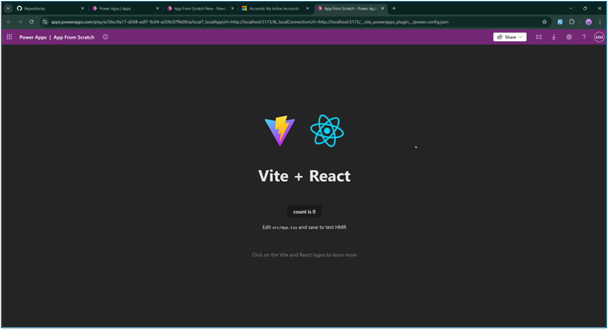
To preview your app during development, run the dev command. When successful, the CLI will open a local URL where you can test your code app in the browser.
Note: Ensure you use the same browser profile that is signed into your Power Platform tenant.
					<pre style="background: #f4f4f4; padding: 15px; border-radius: 5px; font-family: monospace;">
npm run dev
</pre>
Build and Deploy to Power Apps Platform
Once local testing is complete, you can build and push your app to Power Apps.
npm run build: Compiles your TypeScript code and bundles assets.
pac code push: Publishes a new version of your code app to Power Apps.
					<pre style="background: #f4f4f4; padding: 15px; border-radius: 5px; font-family: monospace;">
npm run build
pac code push
</pre>
Upon completion, the CLI will return a Power Apps URL – this is the link where your app can be run, shared, and managed in the Power Apps portal.
Creating a Power Apps code app from scratch provides developers with full control over app structure and deployment while leveraging the scalable Power Platform ecosystem.
Coming Up in Part 2:
In the next part of this blog series, we will move beyond app creation and focus on connecting the code app to Microsoft Dataverse. We will walk through a practical, code-first example that demonstrates how to retrieve multiple records from Dataverse using generated services.
Take Your Power Apps Beyond "Low-Code"
Ready to deploy enterprise-grade Code Apps?
Skip the learning curve and let our Microsoft Architects build scalable, secure solutions for you.
FAQs About Power Apps Code Apps
What is a Power Apps code app?
A Power Apps code app is a specialized application type that allows developers to build custom apps using pro-code tools like TypeScript, React, and Node.js, while running within the secure Power Platform ecosystem. Unlike drag-and-drop Canvas apps, code apps offer granular control over the DOM, performance, and development lifecycle, making them ideal for complex, enterprise-grade requirements.
How is a code app different from a Canvas app?
The main difference lies in the development approach. Canvas apps utilize a low-code, drag-and-drop interface intended for rapid business logic implementation. Code apps utilize a "code-first" approach using the Power Platform CLI and standard web development stacks (like Vite and React). Code apps are best suited for professional developers who need to bypass the UI limitations of standard Canvas controls.
What are the prerequisites for building a Power Apps code app?
To build a code app, you need a local development environment configured with:
Node.js (LTS version).
Visual Studio Code (or preferred IDE).
Microsoft Power Platform CLI (pac).
Git for version control.
Access to a Power Platform environment with code app features enabled.
Can I use React and TypeScript to build Power Apps?
Yes. Power Apps code apps are designed to work natively with modern web standards. The default template provided by Microsoft uses Vite and React with TypeScript, allowing developers to use familiar libraries, hooks, and component structures that are standard in the web development industry.
What is the difference between a Code App and PCF (Power Apps Component Framework)?
PCF allows you to build individual custom controls (widgets) that live inside a Canvas or Model-driven app. A Code App is a standalone application entirely built with code. Think of PCF as a custom brick in a wall, whereas a Code App is the entire custom house built on the Power Platform foundation.
How do I deploy a code app to my environment?
Deployment is handled via the Power Platform CLI. After developing locally, you run npm run build to bundle your assets, followed by pac code push. This command packages your code and publishes it directly to your connected Dataverse environment, generating a live URL for users.