













Learn QuickBooks Integrations with Azure Functions using .NET SDK Dynamics 365 CRM
In this blog, we will guide you through the integration of QuickBooks.Net SDK and Azure Functions. This integration will add data into QuickBooks from Dynamics 365 CRM. The article will walk you through the end-to-end functionality from Dynamics 365 CRM to QuickBooks using Azure Functions as an intermediary.

What Is Azure Functions?
Azure Functions is a cloud service providing the complete infrastructure to run your applications in any language. Developers can focus on writing the code while Azure Functions handles the rest by providing serverless computing on the Azure cloud service.
We can use Azure Functions to build web APIs, respond to database changes, process IoT streams, manage message queues, etc.
As a server-less solution, Azure Functions allows you to write less code, maintain less infrastructure, and reduces costs. You need only to create Azure Functions in Visual Studio and log in with your Microsoft (MS) credentials. Doing so will create a pathway to the Azure cloud.
What Is QuickBooks?
QuickBooks is an accounting software package that handles a business’s monetary requirements and is most suitable for small-to-medium-sized organizations. This product, created by the main programming designer Intuit, permits you to oversee deals and costs, create reports, record charges, and a lot more. It offers a host of in-constructed reports that are easy to tweak and makes assuming responsibility for your accounts simple. Thus, for an adaptable and careful utilization of the accounting software, top-to-bottom information is fundamental about this product.
End-to-End Functionality
When a record is created and updated in Dynamics 365 CRM, that record will trigger Azure Functions to connect to QuickBooks API using .Net SDK and will perform CRUD operations on QuickBooks with serverless integration and return HTTP response in JSON format. We will use MS Flow (Power Automate) to leverage Azure Functions with Dynamics 365 CRM as a trigger.

How To Create Azure Functions Using Visual Studio
Step 1: Install Visual Studio 2019 community edition from the following link: https://visualstudio.microsoft.com/downloads/
Step 2: Add Azure cloud service module while installing; if you have Visual Studio 2019 already installed then just add Azure Function module in Visual Studio 2019.
Step 3: Open Visual Studio 2019 when installation is complete and click on New Project.
In the search bar above write: “Azure Functions” and you will see the Azure Functions option like this:
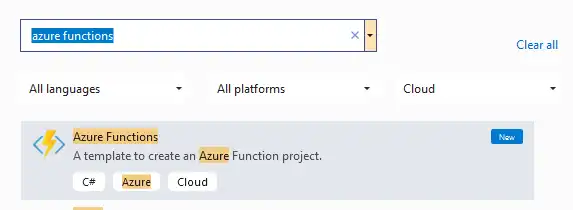
Step 4: Click on “Next” and provide the project name, location, and solution name. Upon clicking “Next” you will get trigger options, click on HTTP trigger and then click on Create.
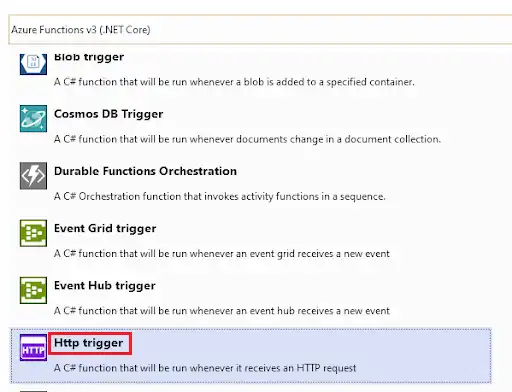
Step 5: Once Azure Functions is created successfully, you will see Azure Functions libraries automatically installed, which will help you to establish a connection with the Azure cloud service.
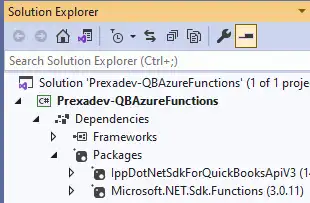
To confirm if packages are installed correctly, go to Solution Explorer and expand the dependencies option in your solution project and you will see the Microsoft.Net.Sdk. Function’s package installed in Packages.
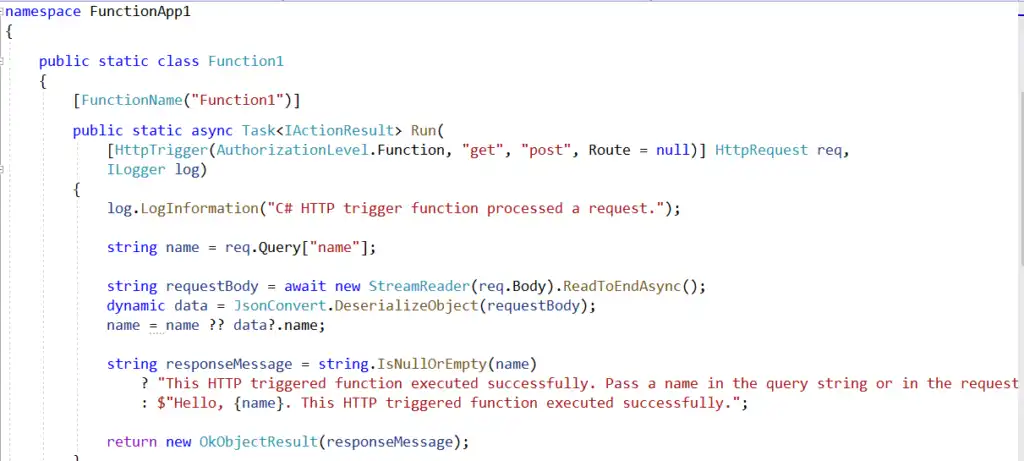
Once created, Azure Functions code will automatically be added, which will act as an HTTP endpoint.
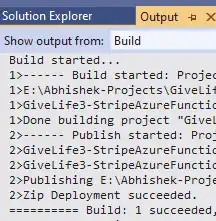
Step 6: Now open the Build option on the top menu bar and click on Build Solution or right-click on the project in Solution Explorer and click on the Build option. Open the Output folder and you will see Build successful without any errors.
Step 7: Next, run the project from the top menu bar by clicking on the FunctionApp1 option.
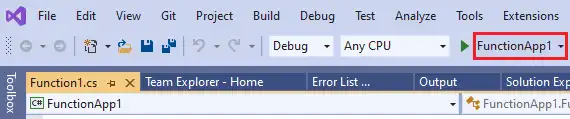
When clicking on FunctionApp1 option as highlighted in the above snapshot compiler will start building the project and once the build is successful compiler will start executing Azure Functions which will open a new command prompt and you will see the endpoint URL.
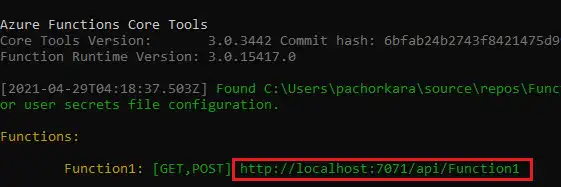
Open any browser and enter this endpoint URL. You will see a response message is printed on the screen. You can also pass parameters with URL.

Install QuickBooks.Net SDK API into Azure Functions
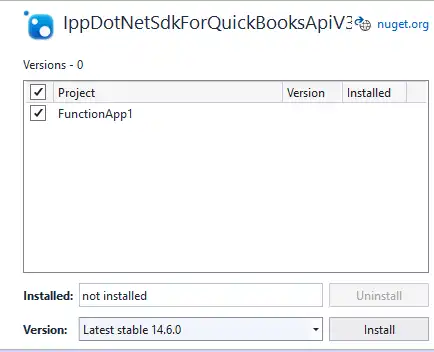
Open the Tools option in the top menu bar of Visual Studio 2019 and click on the NuGet Package Manager option. Click on Manage NuGet Packages for Solution.
In the browse type IppDotNetSdkForQuickBooksApiV3 and click on install.
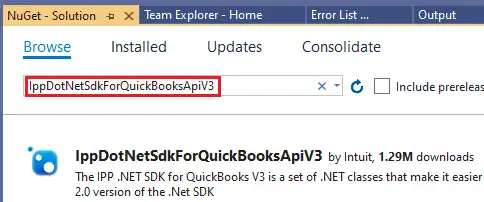
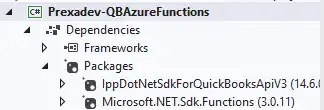
Once successfully installed, you will see QuickBooks API libraries and packages installed in dependencies.
Create Application In QuickBooks Sandbox Company
Next, you will create a Sandbox company in QuickBooks and a new application.
1. Open Dashboard by logging into QuickBooks developer login where you will find this page:
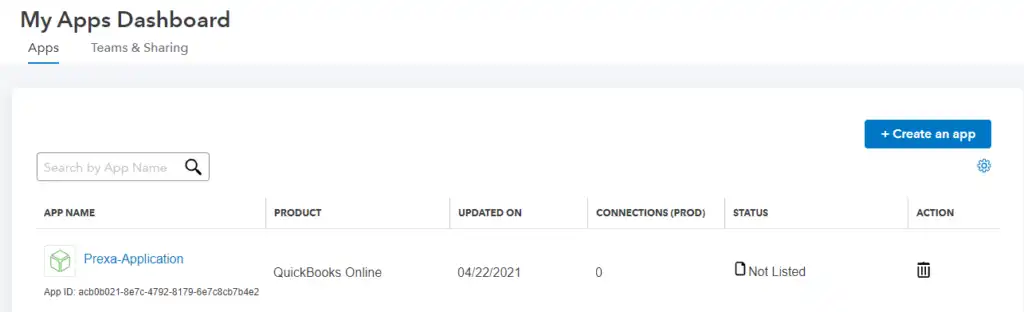
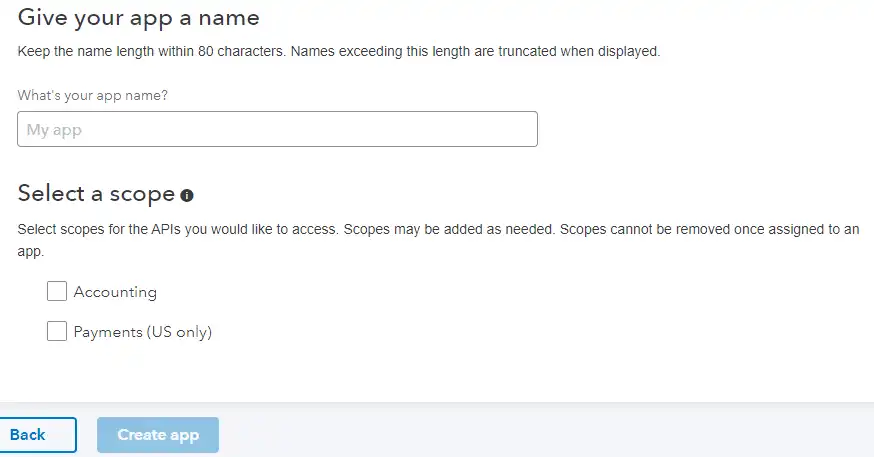
2. By clicking on Create App you can easily create a new application. Provide the application name and scope if you are building a QuickBooks API application for Canada and then select “accounting” under “scope”. For the US, click both “accounting” and “payments.”
3. The next step is to add a redirect URL to the application. Redirect url is the url where your application runs on server if your application is running locally then provide localhost url else provide server url . This will be used in the Azure Functions later.
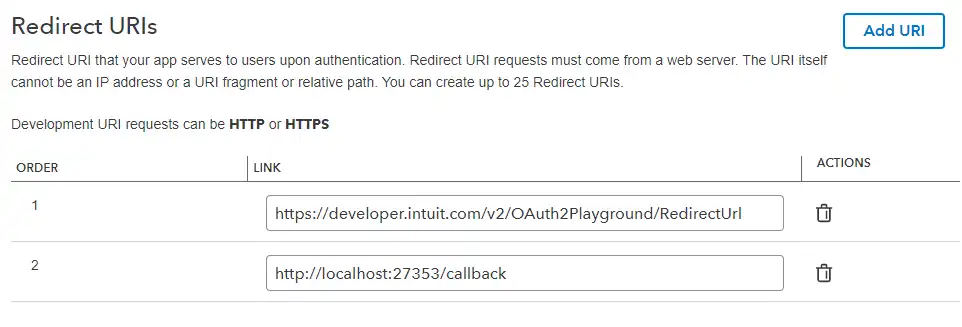
4. Now open QuickBooks playground where you will generate the first refresh token and access token which will be used by our Azure Functions. Refresh token and access tokens are basically authorization strings which are granted to client users to access web services. Once an access token is expired i.e after every 24 hours access token expires you can generate a new one using the refresh token. After each successful QuickBooks API call our Azure Functions will generate subsequent refresh tokens to make API calls and will be stored in CRM through MS flow.
Open this link in the new tab

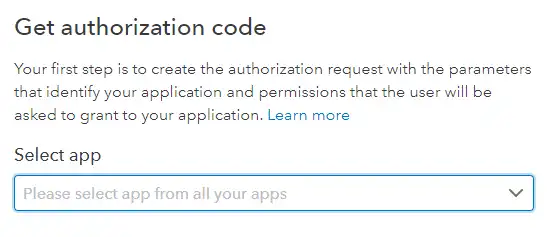
Select app from the dropdown
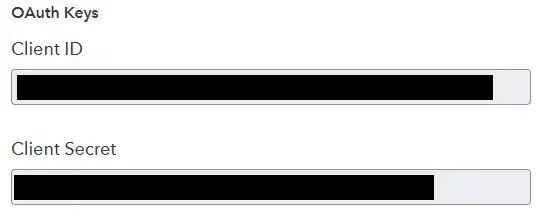
5. After selecting the app, QuickBooks Playground page will get the client id and client secret of your selected application. The client id and client secret are basically are identifiers associated with an application in our case it’s associated with the application which we created above.
6. Now select scopes if your company is American then select scope as Accounting and Payments both but for the rest all countries select Accounting.
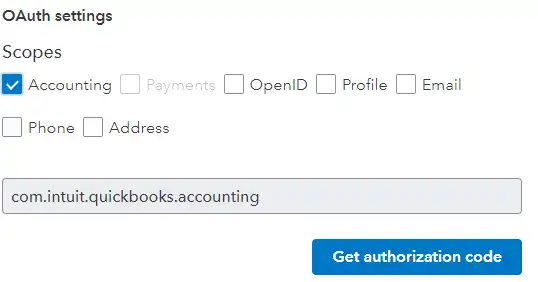
7. Now click on the Get Authorization code which will navigate you to the QuickBooks company login page.
Log in with your credentials and the QuickBooks Playground page will create an authorization code and will auto-populate the company/realm id shown in the below snapshot.
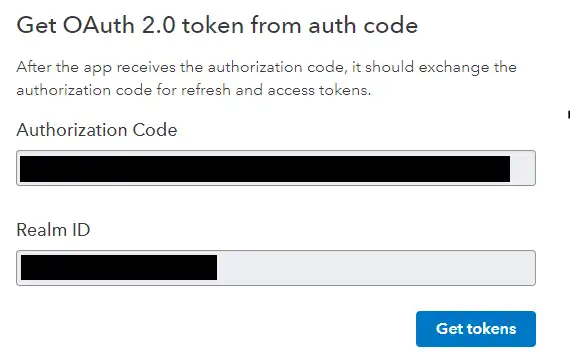
8. Click on “Get Tokens” and it will get refresh token and access token.
Copy the refresh token and save it somewhere which will be used in Azure Functions to make API call.
Now write code in Azure Functions using .Net SDK
Create configuration class or a config file in Azure Functions .net SDK for providing all configurations such as client id, client secret, redirect URL, company if, refresh token, or scope.
class QBServiceInitializer
{
public async Task {Tuple{ServiceContext ,string}} initializeServiceContext(QBConfigurations qBConfigurations)
{
OAuth2Client oauthClient = new OAuth2Client(qBConfigurations.QbClientId, qBConfigurations.QbClientSecret,
qBConfigurations.QbRedirectUrl, qBConfigurations.QbEnv); // environment is “sandbox” or “production”
//Prepare scopes
List scopes = new List();
scopes. Add (OidcScopes.Accounting);
//Get the authorization URL
string authorizeUrl = oauthClient.GetAuthorizationURL(scopes);
//Refresh token endpoint
var tokenResp = await oauthClient.RefreshTokenAsync(qBConfigurations.QbRefreshToken);
string refresh Token = tokenResp.RefreshToken;
OAuth2RequestValidator oauthValidator = new OAuth2RequestValidator(tokenResp.AccessToken);
ServiceContext serviceContext = new ServiceContext(qBConfigurations.QbCompanyId, IntuitServicesType.QBO,
oauthValidator);
serviceContext.IppConfiguration.BaseUrl.Qbo = qBConfigurations.QbBaseUrl;
serviceContext.IppConfiguration.MinorVersion.Qbo = qBConfigurations.QbMinorVersion;
return Tuple.Create(serviceContext, refreshToken);
}
}
Once the access token is received, we can make QuickBooks Online API calls
QBServiceInitializer qBServiceInitializer = new QBServiceInitializer();
Tuple<servicecontext, string=””> tuple = await qBServiceInitializer.initializeServiceContext(qbConfigurations);</servicecontext,>
SalesReceiptCRUD salesReceiptObj = new SalesReceiptCRUD();
tuple.Item1.RequestId = Helper.GetGuid();
salesReceiptQbId = salesReceiptObj.SalesReceiptAddTestUsingoAuth(tuple.Item1, salesReceipt);
As Azure function successfully been developed you need to publish your Azure function in azure tenant.
Here is Educational resource on how OAuth 2.0 works, relevant for QuickBooks app token flow.
Publish Azure Functions
Right-click on the Azure Functions project in Visual Studio and click on Publish.
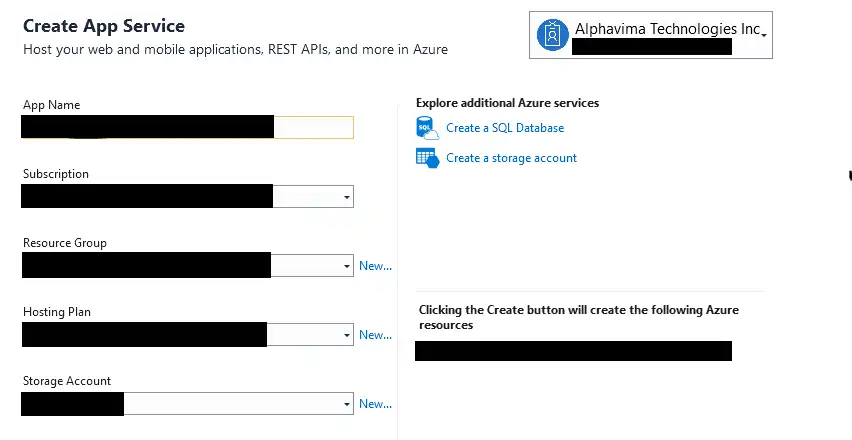
1. Provide any app name and select subscription, resource group, and storage plan, and then click on Create.
2. Once the App profile is created, then finally click on Publish.
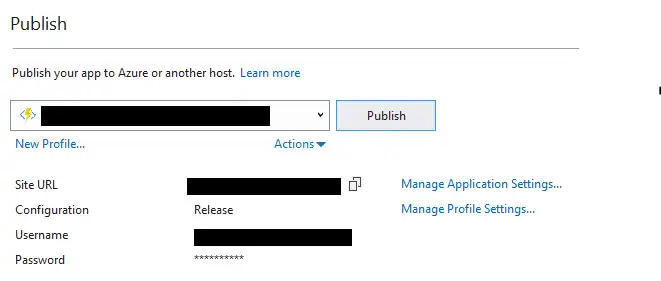
3. Now sign in to the Azure portal by entering credentials. You will see the Azure Functions resource created in this subscription.
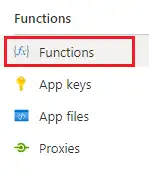
You can see these functions created which are in the enabled state. Click on any function to proceed further.

4. Check for Azure Functions URL, which you will use in MS flow further to call Azure Functions from the application or Dynamics 365 CRM by clicking on Get Function Url.

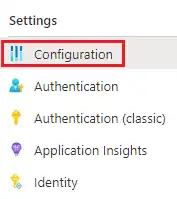
5. Click on Configuration for adding configurations for your Azure Functions which you will get inside your Azure Functions code.
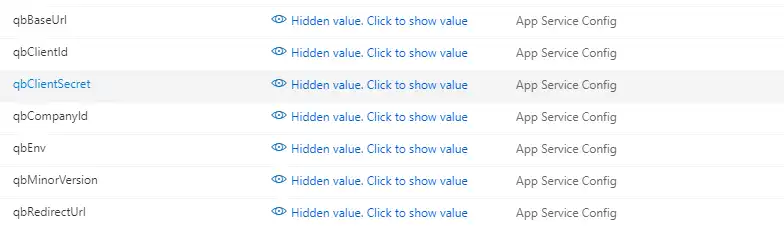
6. Click on New Application Setting for creating configuration parameters.
7. Now create MS flow with any trigger point such as create/update. Inside your Azure Functions add step Http Request
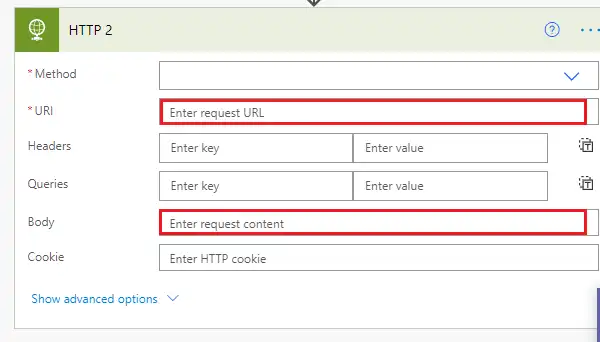
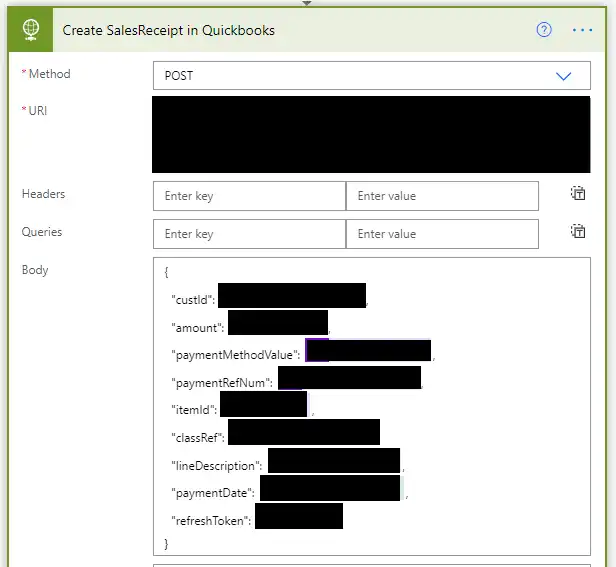
Inside URI enter Azure Functions URL and in body pass JSON object which you want to send as request parameter to Azure Functions.
Sum it up
In this blog, you learned how to create an application in your QuickBooks sandbox/production company, how to create Azure Functions in Visual Studio, and how to publish it to the cloud. Then you were taught how to access the Azure Functions inside your MS flow to trigger your Azure Functions and perform the CRUD operation into QuickBooks and get a response back.
Need a smoother way to connect QuickBooks with Dynamics 365?
Sync your financial data with Azure and Dynamics 365 to simplify accounting, improve accuracy, and save time.
FAQs
What is the purpose of integrating QuickBooks with Azure and Dynamics 365?
The integration allows seamless data synchronization between QuickBooks (for accounting) and Microsoft Dynamics 365 CRM (for sales and operations) using Azure Functions. It eliminates manual data entry, improves financial visibility, and enhances real-time business decision-making.
How does Azure Functions help in QuickBooks integration?
Azure Functions enables serverless execution of custom code that connects APIs from QuickBooks and Dynamics 365. It can automate tasks like syncing invoices, customers, and transactions without managing infrastructure, making the integration lightweight and scalable.
What technologies are used in this integration example?
The blog demonstrates QuickBooks integration using:
-
Azure Functions
-
.NET SDK for QuickBooks
-
QuickBooks OAuth2 API
-
Dynamics 365 Web API
-
Visual Studio
-
Azure Portal
Is this integration secure and scalable?
Yes. Azure provides enterprise-grade security features like identity management, access control, and encryption. Combined with token-based authentication from QuickBooks and secure API calls to Dynamics 365, the solution is both secure and scalable.
What kind of data can be exchanged between QuickBooks and Dynamics 365?
Typical data flows include:
-
Customer records
-
Invoices and payments
-
Account balances
-
Sales transactions
This enables a unified view of financial and operational data across systems.
Do I need coding experience to set up this integration?
Basic coding knowledge is helpful. This guide uses Visual Studio and .NET to build and deploy the Azure Function. However, once the setup is complete, the integration can run automatically without manual intervention.
What are the benefits of automating QuickBooks and CRM sync?
Key benefits include:
-
Reduced manual entry and human errors
-
Real-time data availability
-
Better forecasting and financial planning
-
Streamlined workflow between sales and accounting teams
Can I modify the integration to suit custom business needs?
Yes. The Azure Function code is customizable. You can add logic for specific triggers, data filters, or custom entities in either QuickBooks or Dynamics 365 based on your operational requirements.