











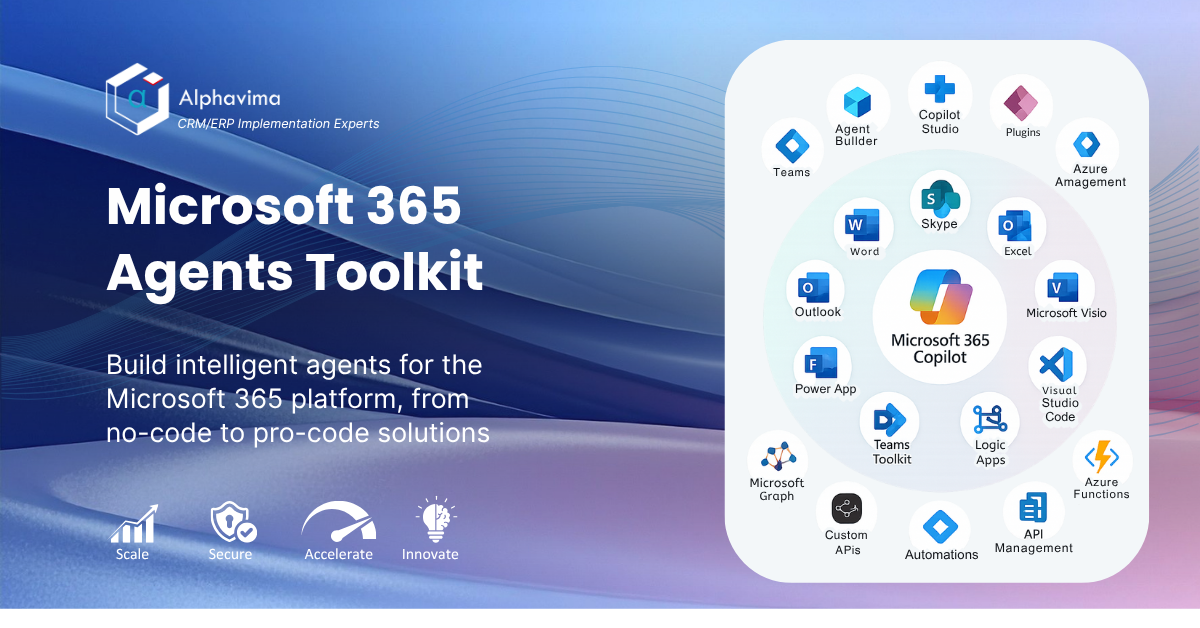
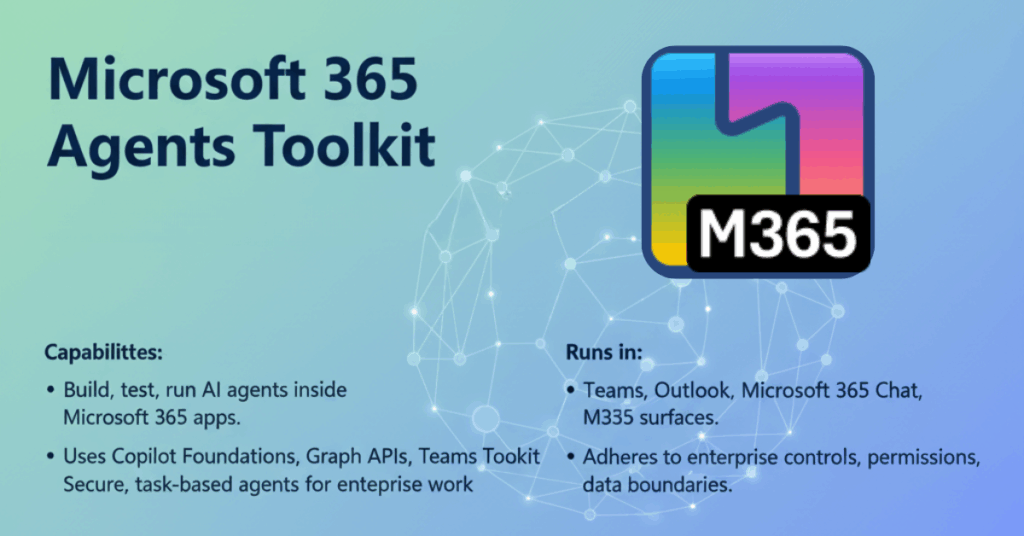
Microsoft 365 Agents Toolkit gives developers a simple path to build, test, and run AI agents inside Microsoft 365 apps. It uses Copilot Foundations, Graph APIs, Teams Toolkit, and secure M365 services to help you build task-based agents that handle real work inside your organization.
These agents run inside Teams, Outlook, Microsoft 365 Chat, and other M365 surfaces. They follow your enterprise controls, permissions, and data boundaries.
This guide explains how the toolkit works, what you can build, and how to get started.
What is the Microsoft 365 Agents Toolkit?
The Microsoft 365 Agents Toolkit is a set of tools, libraries, and templates that help developers build AI agents using Microsoft 365 services.
It includes:
• Agent runtime
• Agent schema
• Skills integration
• Copilot Foundations
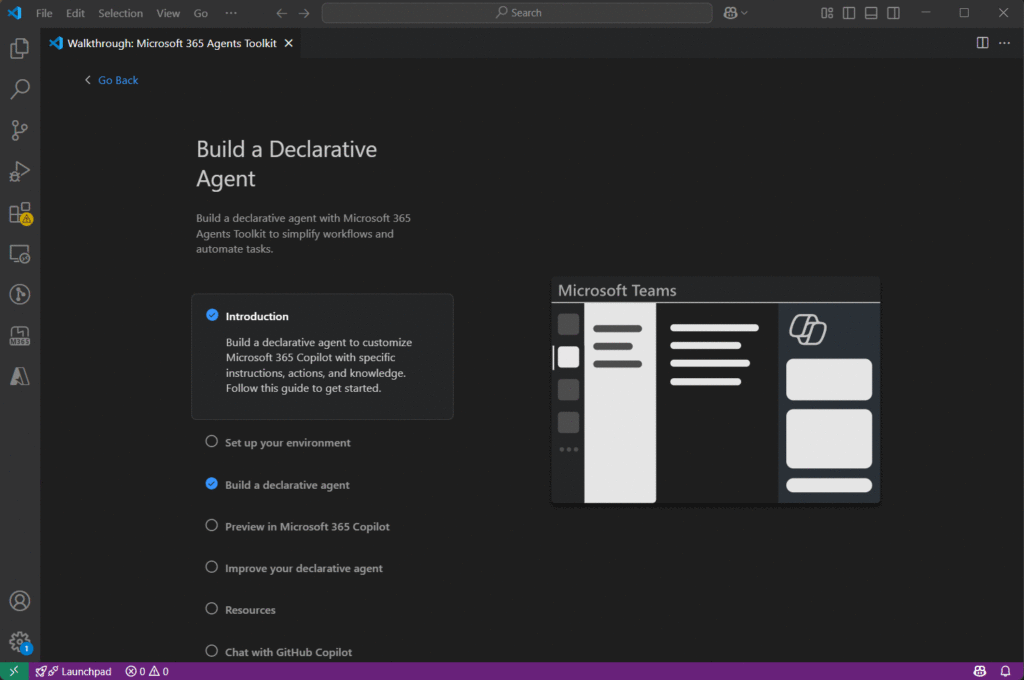
• Teams Toolkit extension for Visual Studio Code
• Tools for prompts, memories, and orchestration
• Secure Graph API access
You can explore the official source code, templates, and samples in the Microsoft 365 Agents Toolkit GitHub repository.
The toolkit lets you build agents that:
• Read and update Microsoft 365 data
• Trigger flows and processes
• Respond inside Teams
• Use enterprise authentication
• Follow service-level security
• Use custom logic and custom skills
This gives organizations a controlled and safe way to extend Copilot with internal systems.
How Microsoft 365 Agents Work
Agents rely on four main elements.
1. Goals
Clear tasks for the agent.
For example:
“Create a weekly status report from Planner tasks.”
2. Actions
Functions or skills that the agent can run.
Examples: Graph calls, plugins, API triggers, custom logic.
3. Memory
Short-term and long-term information that helps the agent maintain context.
4. Prompts
Structured instructions that guide how the agent behaves.
The toolkit brings all four together and gives you a runtime to test and deploy the agent.
Where Agents Can Run
Using this toolkit, you can deploy agents into:
• Teams chat
• Teams channels
• Microsoft 365 Chat
• Copilot inside Outlook
• Plugins built on Microsoft Graph
Most organizations start with Teams because it gives employees direct access from their daily workspace.
Key Benefits for Businesses
1. Faster task execution
Agents can file updates, check data, pull reports, and handle routine steps without human effort.
2. Built on Microsoft Graph
You can use Graph to read emails, files, calendars, tasks, user profiles, Planner boards, SharePoint lists, and more.
3. Secure by design
Agents run under Microsoft 365 identity.
They follow tenant policies, permissions, and audit logs.
4. Reusable skills
Developers can bundle common processes into skills for multiple agents.
5. Simple to build
Teams Toolkit handles wiring, permissions, scaffolding, and debugging.
What You Can Build With Microsoft 365 Agents Toolkit
1. Sales and CRM agents
• Update CRM records
• Pull customer notes
• Generate meeting summaries
• Prepare account handover data
2. HR and admin agents
• Onboarding steps
• Leave summaries
• Policy lookups
• Document routing
3. Project agents
• Daily standup reports
• Ticket summaries
• Task allocation
• Risk updates
4. IT support agents
• Password reset process
• Device inventory checks
• Knowledge base retrieval
• Ticket creation
5. Finance agents
• Vendor updates
• Budget notes
• Invoice summaries
• Monthly close reminders
The use cases are almost endless when you combine skills, plugins, and Graph.
How to Build an Agent with the Toolkit
Below is a simple sequence that developers follow. Follow the official setup steps here: Install the Microsoft 365 Agents Toolkit (Teams Toolkit)
Step 1: Install the Teams Toolkit for Visual Studio Code
This extension includes:
• Agent templates
• Debugger
• Project scaffolding
• Microsoft 365 integration
Step 2: Create an agent project
Select “AI Agent” from the toolkit menu.
This adds:
• Agent manifest
• Prompt templates
• Action handlers
• Graph integration setup
Step 3: Add skills and actions
You can add:
• Custom functions
• Graph calls
• REST APIs
• Power Automate flows
• Internal service triggers
Step 4: Connect Microsoft Graph
Use Graph for:
• Files
• Calendar
• Messages
• Tasks
• Lists
• Groups
The toolkit handles authentication.
Step 5: Add memory
Short-term memory helps with context.
Long-term memory helps with personalization or stored data.
Step 6: Test in Teams
Run the local debugger and test the agent inside your Teams sandbox.
Step 7: Deploy to your tenant
Publish the agent app package.
Assign permissions.
Roll out to selected users or groups.
Developer Features You Should Not Miss
1. Agent SDK
A set of modules to create goals, handle prompts, manage memory, and run actions.
2. Copilot Foundations
Pre-built reasoning, grounding, and safety.
3. Orchestration
The agent breaks tasks into smaller steps and executes them in sequence.
4. Plugin integration
Connects to Custom Connectors, internal APIs, and Logic Apps.
5. Agent Playground
A preview environment coming soon that lets developers test prompts before deployment.
For detailed developer documentation, see the Microsoft 365 Agents Developer Overview.
Conclusion
Microsoft 365 Agents Toolkit gives developers a direct way to build task-driven agents inside Microsoft 365. With Graph, Teams Toolkit, and secure M365 services, your organization can build agents that support real processes without exposing data to unsafe systems.
The toolkit gives you full control, enterprise security, and flexibility to create agents that help teams work faster.
If your business wants to start with Microsoft 365 Agents, our team at Alphavima can help you design a custom agent, set up skills, and connect your systems to Microsoft 365.
Need help building your first Microsoft 365 agent?
Talk to our team and explore what the toolkit can do for your systems.
FAQs
What is the Microsoft 365 Agents Toolkit?
The Microsoft 365 Agents Toolkit is a development framework that lets organisations build intelligent, conversational AI agents that work natively inside Microsoft 365 applications such as Teams, Outlook, and Copilot. Unlike standalone chatbot platforms, agents built with this toolkit are deeply integrated into the Microsoft ecosystem — they can read from and write to SharePoint, Outlook, Teams channels, and Dataverse without requiring additional middleware. The toolkit provides project templates, local debugging tools, and a deployment pipeline that targets the Microsoft 365 app store, making it straightforward to go from a development environment to a production agent that your entire organisation can use within days rather than months.
Do I Need Coding Experience to Build Agents?
Some level of coding knowledge is beneficial, but the toolkit is designed to be accessible to developers with foundational skills rather than requiring deep AI expertise. Microsoft provides ready-made templates for common agent patterns — question-and-answer bots, meeting assistants, document summarisers, and approval workflow agents — that you can customise without building from scratch. Developers familiar with JavaScript, TypeScript, or C# will be most comfortable, as those are the primary languages the toolkit supports. For teams without in-house development capacity, AlphaVima can build, configure, and deploy agents on your behalf, handling everything from initial design through to end-user training and ongoing maintenance.
Which Microsoft 365 Data Sources Can Your AI Agent Access?
Agents built with this toolkit can access a wide range of enterprise data sources through Microsoft Graph and the Power Platform connector ecosystem. Out of the box, agents can read emails and calendar events from Outlook, retrieve documents and lists from SharePoint, query Dataverse tables, and pull information from Teams conversations and channels. Connections to external data — such as a CRM system, an SQL database, or a third-party API — are handled through Azure Logic Apps or Power Automate flows that the agent can trigger as part of its response logic. This breadth of connectivity is what distinguishes these agents from simple rule-based chatbots.
Where Can You Deploy Agents Built with This Toolkit?
Agents created with the Microsoft 365 Agents Toolkit can be deployed to multiple surfaces within the Microsoft 365 ecosystem. The most common deployment target is Microsoft Teams, where agents appear as apps in the app catalogue and can be pinned to channels, used in personal chats, or invoked in meetings. Agents can also surface inside Microsoft Copilot as custom extensions, allowing them to participate in natural language conversations alongside Microsoft’s own AI capabilities. Outlook and SharePoint pages are additional deployment options for agents focused on document processing or email-based workflows. All of these targets are managed through the Microsoft 365 admin centre, with the same access control and compliance policies that govern your other Microsoft apps.
How Do Agents Use Skills to Handle Complex Requests?
Skills are modular, reusable units of capability that an agent can call to complete a specific task. Think of them as specialised sub-agents — one skill might retrieve customer data from your CRM, another might summarise a document, and a third might draft a reply email. When a user sends a message to the main agent, its orchestration logic decides which skill or combination of skills is needed to respond accurately. This architecture keeps individual skills focused and testable while allowing the top-level agent to handle complex, multi-step requests. The Microsoft 365 Agents SDK provides the plumbing for skill registration, invocation, and result aggregation so developers can focus on the business logic within each skill rather than the communication framework.
Is the Microsoft 365 Agents Toolkit Secure for Enterprise Use?
Yes. The Microsoft 365 Agents Toolkit inherits the full enterprise security posture of the Microsoft cloud, including Azure Active Directory authentication, role-based access control, and the compliance capabilities available in Microsoft Purview. Agents run inside your Microsoft 365 tenant boundary, which means they never send data to external AI services without explicit configuration — all processing happens within your organisation’s contracted Microsoft environment. Data loss prevention policies, sensitivity labels, and information barriers that you have configured for Teams and SharePoint also apply to agent interactions, ensuring that agents respect the same governance rules as human users. Audit logs for agent activity are available in the Microsoft Purview compliance portal.
Can I Connect My CRM or ERP to an Agent?
Absolutely. One of the most compelling use cases for these agents is acting as a conversational interface to your existing business systems. A sales agent, for example, could let a sales representative ask in plain language which deals are closing this quarter and receive a formatted summary pulled directly from Dynamics 365 CRM — without the representative ever opening the CRM app. The connection between the agent and the business system is typically implemented using a Power Automate flow or an Azure Function that the agent calls as a plugin action. AlphaVima’s integration team specialises in designing and building these connectors for Dynamics 365, Business Central, and third-party ERP platforms.
How Do You Get Started Building Your First Agent?
The fastest path to your first working agent is to install the Microsoft 365 Agents Toolkit extension for Visual Studio Code, which provides a guided project wizard, local emulator, and one-click deployment to your Microsoft 365 developer tenant. Microsoft’s documentation includes several end-to-end tutorials that walk through building an echo bot, a document Q&A agent, and a meeting notes summariser — all of which serve as practical foundations you can adapt for real business scenarios. Starting with a clear, narrowly scoped use case — such as answering frequently asked HR questions from a SharePoint knowledge base — gives your team a manageable first project that demonstrates value quickly and builds confidence for more complex agent deployments.