











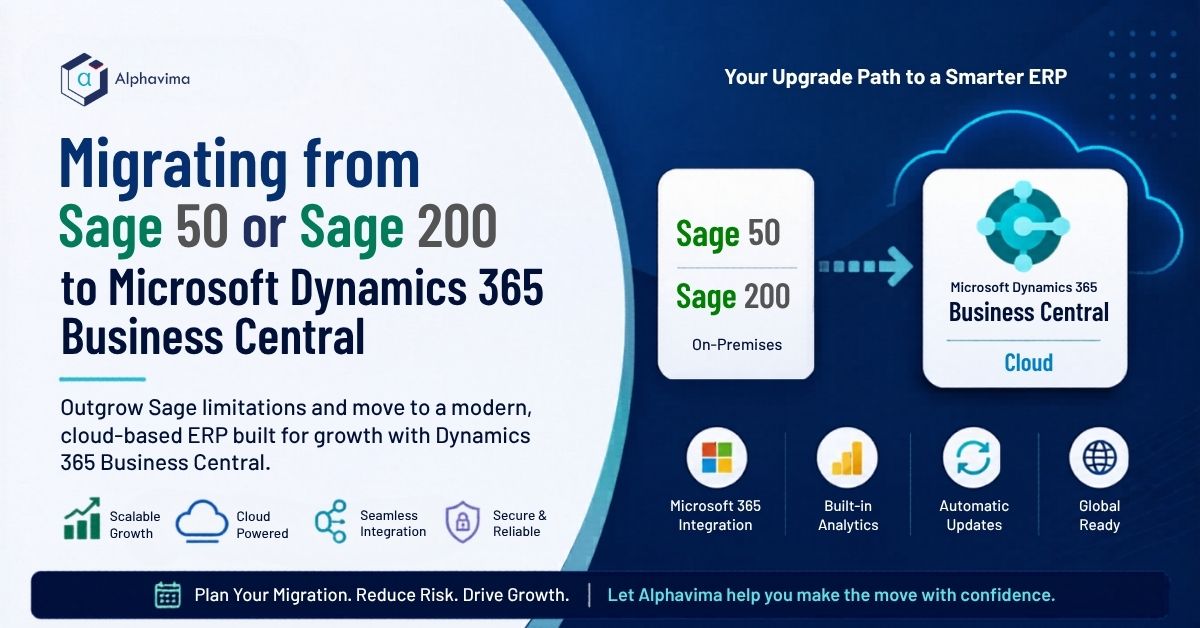
Sage 50 and Sage 200 are trusted accounting tools that have served UK and European businesses for decades. But as businesses grow in complexity – adding warehouses, legal entities, global customers, or manufacturing operations – Sage’s architecture begins to impose real limitations. Microsoft Dynamics 365 Business Central is now the preferred upgrade path for Sage users who need a full-featured ERP platform without switching away from Microsoft’s ecosystem.
This guide walks through the complete migration journey from Sage 50 or Sage 200 to Business Central: what drives the decision to move, how the technical migration works, what the business case looks like, and how to plan for a successful go-live.
Why Sage Users Move to Business Central
Sage 50 Limitations
- Single company only (no multi-entity consolidation)
- No multi-currency for international trading
- No native inventory management beyond basic stock control
- No approval workflows or purchase order controls
- Limited integration with Microsoft 365 tools
Sage 200 Limitations
- On-premises architecture requiring server infrastructure maintenance
- Complex and expensive upgrade cycles
- Limited cloud functionality compared to SaaS alternatives
- Power BI and Teams integration requires middleware
- High total cost of ownership relative to functionality delivered
Why Business Central Wins
- Microsoft ecosystem: Native integration with Teams, Outlook, SharePoint, Power BI, and Power Automate
- Cloud-native SaaS: No server infrastructure, automatic updates, accessible from any device
- Full ERP scope: Finance, Supply Chain, Warehousing, Manufacturing, Projects, and Service management
- AI-powered: Copilot features for cash flow forecasting, late payment prediction, and document processing
- Scalable pricing: Per-user subscription model that scales up and down with your business
Alphavima’s Microsoft Business Central ERP consulting team has migrated UK and European Sage customers across professional services, manufacturing, and distribution.
Sage 50 vs Sage 200 vs Business Central
| Capability | Sage 50 | Sage 200 | Business Central |
|---|---|---|---|
| Multi-entity support | No | Limited | Yes (native) |
| Multi-currency | Limited | Yes | Yes (advanced) |
| Manufacturing management | No | Add-on required | Yes (Premium license) |
| Advanced warehousing | No | Partial / Add-on | Yes |
| Embedded Power BI | No | Limited integration | Yes (native) |
| Microsoft Teams integration | No | Requires middleware | Yes (native) |
| Power Automate workflows | No | Limited | Yes (native) |
| Deployment model | Desktop / Hybrid | On-premises / Hosted | Cloud SaaS |
| Automatic updates | Limited | Manual upgrade projects | Yes |
| AI / Copilot features | No | No | Yes |
Note: Capability availability varies based on Sage edition, deployment model, third-party add-ons, and Microsoft Dynamics 365 Business Central licensing tier. Business Central Premium licensing is required for advanced manufacturing and service management modules.
Migration Roadmap
Stage 1: Discovery and Scoping (Weeks 1–3)
Conduct a thorough discovery of your Sage environment: which Sage version and modules are in use, what customisations or add-ons are active, how many legal entities/currencies/locations, what is the current integration landscape, what reporting requirements must be replicated.
Stage 2: Business Central Configuration (Weeks 3–8)
Configure Business Central to match your business requirements: chart of accounts and posting groups, dimensions for departmental and project tracking, bank accounts/currencies/payment terms, VAT/tax configuration (including MTD compliance for UK businesses), number series and document templates.
Stage 3: Data Export from Sage (Weeks 6–10)
Export master data and open transactions from Sage. Sage 50: export using CSV/Excel from the Data Export function. Sage 200: export using Sage 200 data export tools or direct SQL queries.
Stage 4: Data Cleansing (Weeks 6–10)
Remove duplicates and inactive records, standardise address formats, map Sage account codes to Business Central account numbers, convert Sage item types, validate VAT registration numbers.
Stage 5: Data Import to Business Central (Weeks 10–12)
Import using Business Central’s RapidStart Services and configuration packages: chart of accounts and opening balances, customer and vendor master data, item master and opening stock quantities.
Stage 6: Training and User Acceptance Testing (Weeks 12–16)
Deliver role-based training for Finance, Purchasing, Sales, and Warehouse teams. Run UAT scenarios. Perform parallel processing for 2–4 weeks.
Stage 7: Go-Live (Weeks 16–18)
Freeze Sage on cutover date, enter final balances and open transactions, go live with hypercare support for 2–4 weeks, maintain Sage in read-only mode for 12–24 months.
Key Technical Considerations
Chart of Accounts Mapping
Sage accounts use a numeric account code structure. Business Central is flexible but requires planning your account numbering, posting groups, and dimensions before importing. Use the migration as an opportunity to modernise your financial structure.
VAT and Making Tax Digital (MTD)
For UK businesses, Business Central is fully MTD-compliant with native HMRC VAT submission. If you are currently using Sage’s MTD bridging software, this becomes native in Business Central at no additional cost.
Integrations
All Sage integrations – payroll connectors, bank feeds, e-commerce integrations, EDI connections – must be rebuilt for Business Central. The Business Central API and Power Automate connector provides the integration framework. Plan 4–8 weeks of integration development per complex integration.
Bank Reconciliation
Business Central’s bank reconciliation uses an automatic matching algorithm. Sage bank reconciliation logic differs – users will need training on Business Central’s approach, which is typically faster and more automated once understood.
Total Cost of Ownership: Sage vs Business Central
| Cost Element | Sage 50 / Sage 200 (USD) | Dynamics 365 Business Central (USD) |
|---|---|---|
| Annual software licensing (25 users) | $12,000 – $35,000 / year | $24,000 – $33,000 / year |
| Server / infrastructure costs | $7,000 – $20,000 / year | $0 (Microsoft cloud hosted) |
| IT maintenance & backups | $6,000 – $15,000 / year | Minimal |
| Upgrade projects | $15,000 – $55,000 every 3–5 years | Included in subscription |
| Power BI & reporting tools | Additional setup and licensing costs | Native integration included |
| Microsoft 365 integration | Limited or middleware dependent | Native integration |
| Multi entity / multi currency support | Limited or add-on dependent | Native support |
| Automatic updates | Manual upgrade projects required | Included automatically |
| 5 year estimated TCO | $165,000 – $360,000 | $120,000 – $260,000 |
Note: Actual pricing varies based on users, deployment model, customizations, ISV add-ons, implementation scope, and support requirements. Business Central generally reduces long-term infrastructure, maintenance, and upgrade costs through its SaaS delivery model.
Need Help Moving from Sage to Business Central?
Upgrade from Sage 50 or Sage 200 to a scalable cloud ERP with Microsoft 365 integration, automation, and real time reporting.
Conclusion
Sage 50 and Sage 200 are reliable tools for the businesses they were designed for. But when your business has grown beyond their design envelope – adding complexity, entities, currencies, or operational modules – continuing to stretch Sage creates real operational risk.
Microsoft Dynamics 365 Business Central is designed for where you are going, not just where you are now. It is cloud-native, Microsoft-integrated, AI-enabled, and built to scale.
Ready to move beyond Sage? AlphaVima has delivered Sage to Business Central migrations for businesses across professional services, manufacturing, distribution, and retail. Browse our Business Central consulting locations for a team near you.
FAQs
How is Sage 200 data structured for migration to Business Central?
Sage 200 stores data in SQL Server, which makes extraction relatively straightforward using direct SQL queries or Sage's built-in data export tools. Master data exports cleanly to CSV. Open transaction data requires careful mapping to Business Central's document and ledger structure. A certified implementation partner can automate much of this mapping using transformation scripts.
Does Business Central support the same VAT features as Sage for UK businesses?
Yes, and in most cases it exceeds Sage's VAT capabilities. Business Central supports standard, reduced, and zero VAT rates, reverse charge VAT, EU acquisition VAT, and full Making Tax Digital (MTD) compliance with direct HMRC submission. Sage users currently using additional bridging software for MTD will find this native in Business Central.
Can Sage 50 and Business Central run simultaneously during migration?
Yes. Running both systems in parallel for 2–4 weeks is strongly recommended. Both systems receive the same transactions, and outputs are reconciled to confirm accuracy. After go-live, Sage 50 or 200 can remain accessible in read-only mode.
What Sage 200 add-ons and third-party modules are available in Business Central?
Most functional areas covered by Sage 200 add-ons - advanced manufacturing, field service, project accounting, advanced warehousing - have native equivalents in Business Central or certified ISV extensions available on Microsoft AppSource.
How long does a Sage to Business Central migration take for a mid-size company?
A typical Sage 50 migration for a company with 15–40 users takes 10–16 weeks. A Sage 200 migration with multiple modules, customisations, or multi-entity requirements typically takes 16–24 weeks.
Will Business Central handle multi-currency better than Sage 200?
Yes. Business Central's multi-currency support is comprehensive - multiple functional currencies, exchange rate adjustments, currency revaluation, and multi-currency bank reconciliation are all native. Sage 200 multi-currency is functional but has known limitations with intercompany transactions and consolidated reporting in foreign currencies.
Can we migrate Sage Payroll data to Business Central?
Sage Payroll is a separate product that does not migrate directly to Business Central. Business Central does not include native payroll in most regions. However, it integrates with leading payroll providers - including ADP, Moorepay, and Cintra - via certified AppSource connectors.
What is the risk of a Sage to Business Central migration going wrong?
The main risks are data quality issues (duplicates, incorrect balances), insufficient user training, and underestimating customisation rebuild time. These risks are managed through a structured discovery phase, rigorous data cleansing before migration, a parallel running period, and role-based training.