











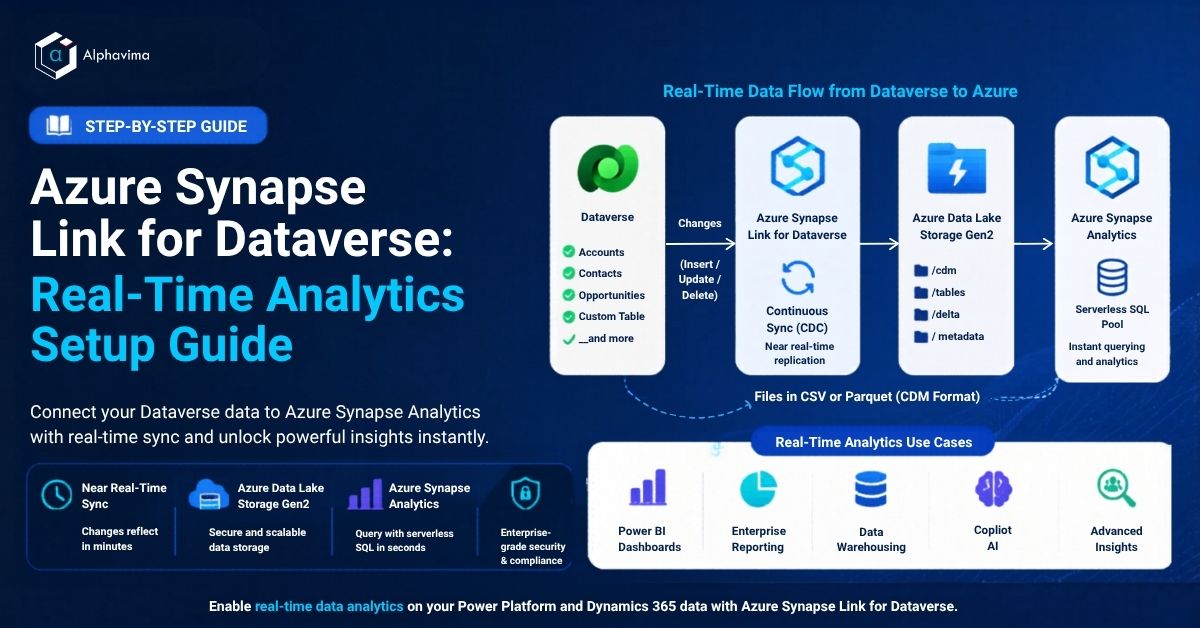
Dataverse is the data backbone of the Power Platform – storing records for Dynamics 365 Sales, Customer Service, Field Service, and any custom Power Apps your organisation has built. But Dataverse is optimised for transactional operations, not complex analytics. Running heavy aggregation queries, joining across large datasets, or building enterprise data warehouses directly on Dataverse is slow and not recommended.
Azure Synapse Link for Dataverse bridges this gap. It creates a continuous, near-real-time export of your Dataverse tables into Azure Data Lake Storage Gen2, accessible from Azure Synapse Analytics workspaces – without any custom ETL code, Power Automate flows, or scheduled exports.
In this guide, you will learn how to set up Azure Synapse Link for Dataverse from scratch, select your tables, and verify data is flowing into your Synapse workspace. This is a foundational pattern in Alphavima’s Microsoft Fabric services for Dataverse-driven organisations.
What Is Azure Synapse Link for Dataverse?
Azure Synapse Link for Dataverse (formerly known as Export to Data Lake) is a native Power Apps/Dataverse feature that:
- Continuously syncs selected Dataverse tables to Azure Data Lake Storage Gen2 in Common Data Model (CDM) format
- Updates happen within minutes of a Dataverse record change (near real-time CDC)
- Data is stored as CSV or Parquet files in the lake
- Azure Synapse Analytics can query the lake directly using serverless SQL pools – no data movement needed
- Works with Dynamics 365 tables (Accounts, Contacts, Opportunities, Cases) and custom Dataverse tables
This approach replaces the need for complex SQL replication setups. For comparison, see our guide on connecting D365 CRM to SQL Server directly.
Prerequisites
- A Dataverse environment (Power Platform / Dynamics 365)
- System Administrator role in the Dataverse environment
- An Azure subscription in the same Azure Active Directory tenant as your Power Platform
- An Azure Data Lake Storage Gen2 account (Hierarchical Namespace enabled)
- An Azure Synapse Analytics workspace (optional for initial setup – required for querying)
- Contributor access to the Azure storage account
Architecture Overview
The data flow is:
- Dataverse → record created/updated/deleted
- Azure Synapse Link → detects the change and writes delta files to ADLS Gen2
- Azure Data Lake Storage Gen2 → stores the data as CSV/Parquet in CDM format
- Azure Synapse Analytics → serverless SQL or Spark pools read from the lake
- Power BI → connects to Synapse for enterprise reporting
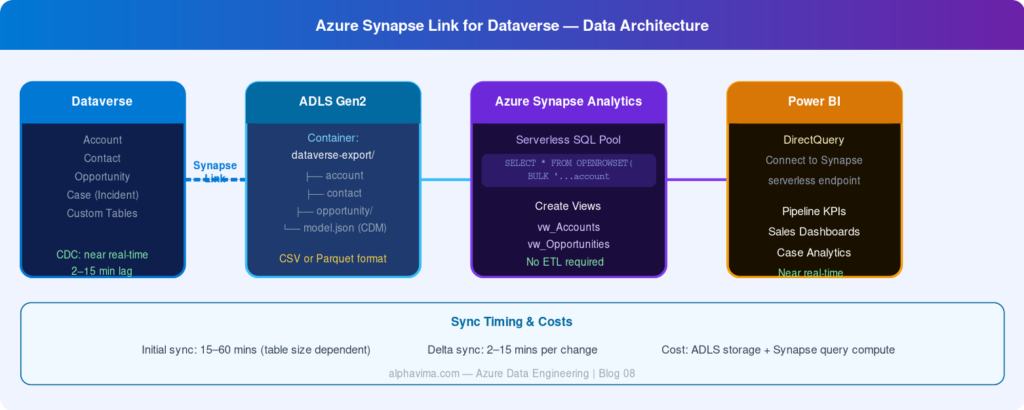
This architecture is the foundation of a modern data platform for Power Platform and Dynamics 365 organisations. For a wider view of where this fits, see our overview of the future of data analytics with Microsoft Fabric and the complementary path for D365 F&O via the Data Management Framework export.
Step 1: Create an Azure Data Lake Storage Gen2 Account
If you already have an ADLS Gen2 account, skip to Step 2.
- In the Azure Portal, click Create a resource → Storage account.
- Configure:
- Resource group: Create or select existing
- Storage account name (example): alphavimadatalake (globally unique, lowercase, no hyphens)
- Region: Same region as your Power Platform environment
- Performance: Standard
- Redundancy: LRS (development) or GRS (production)
- On the Advanced tab, enable Hierarchical namespace – this is what makes it ADLS Gen2.
- Click Review + Create → Create.
Step 2: Create an Azure Synapse Analytics Workspace
- In the Azure Portal, click Create a resource → Azure Synapse Analytics.
- Configure:
- Workspace name (example): alphavima-synapse
- Region: Same as your storage account
- Select Data Lake Storage Gen2: Select your storage account from Step 1
- File system name: synapse (or a name of your choice)
- Complete the wizard and click Create.
This process takes 5–10 minutes.
Step 3: Grant Synapse Access to the Storage Account
- Open your ADLS Gen2 storage account in the Azure Portal.
- Go to Access Control (IAM) → Add role assignment.
- Role: Storage Blob Data Contributor.
- Assign to: Your Azure Synapse Analytics workspace (managed identity).
- Click Save.
Repeat to also assign Storage Blob Data Contributor to the Power Platform environment’s service principal (found in Azure AD under App registrations – search for “Power Platform”).
Step 4: Configure Azure Synapse Link in Power Apps Maker Portal
- Go to powerapps.com and select your Dataverse environment.
- In the left navigation, click Azure Synapse Link (under Data section).
- Click + New link.
- The New link to data lake wizard opens.
Configure the Connection
- Subscription: Select your Azure subscription.
- Resource group: Select the resource group containing your storage account.
- Storage account: Select your ADLS Gen2 account.
- Container: Select or create a container (e.g., dataverse-export).
- Click Next.
Step 5: Select Tables to Export
- In the Select tables step, you see a list of all Dataverse tables in your environment.
- Select the tables you want to export. Recommendations for most organisations:
| Table | Use Case |
|---|---|
| Account | Customer master analytics |
| Contact | Contact analytics and email campaign analysis |
| Opportunity | Pipeline tracking and sales forecasting |
| Incident (Case) | Support analytics and SLA reporting |
| Lead | Lead conversion analysis |
| systemuser | User activity and adoption analytics |
| activitypointer | Activity volume and engagement analysis |
- Check Append only if you want to preserve historical deltas (recommended for audit and trend analysis).
- Click Save.
Warning: Do not select all tables indiscriminately. Start with 5–10 core tables and expand once you have validated the pipeline. Each table adds ongoing compute and storage costs.
Step 6: Verify Data Flowing to the Lake
- Wait 15–30 minutes for the initial sync to complete.
- In the Azure Portal, open your ADLS Gen2 storage account.
- Navigate to Containers → your container → you should see folders named after your selected tables (e.g., account, contact).
- Inside each folder, you will see CSV files (one per sync increment) and a json file describing the CDM schema.
If folders are empty after 30 minutes:
- Check the Azure Synapse Link status in Power Apps maker portal – it should show Active
- Verify the storage account permissions granted in Step 3
- Check that the Power Platform environment and Azure subscription are in the same AAD tenant
Step 7: Query Dataverse Data from Azure Synapse
- Open your Azure Synapse Analytics workspace.
- In Synapse Studio, go to Data → Linked → your storage account should appear.
- Navigate to the container and your table folder.
- Right-click a CSV file → New SQL script → Select TOP 100 rows.
Synapse generates a serverless SQL query like:
					SELECT TOP 100 *
FROM OPENROWSET(
    BULK 'https://alphavimadatalake.dfs.core.windows.net/dataverse-export/account/*.csv',
    FORMAT = 'CSV',
    PARSER_VERSION = '2.0',
    HEADER_ROW = TRUE
) AS [result]
Run this to verify your data is accessible.
For more complex analytics, create a database view over the lake:
					CREATE VIEW dbo.vw_Accounts AS
SELECT
    accountid,
    name,
    emailaddress1,
    telephone1,
    statecode,
    createdon
FROM OPENROWSET(
    BULK 'https://alphavimadatalake.dfs.core.windows.net/dataverse-export/account/*.csv',
    FORMAT = 'CSV',
    PARSER_VERSION = '2.0',
    HEADER_ROW = TRUE
) AS data;
Power BI can now connect to this Synapse serverless endpoint as a data source – providing live, near-real-time dashboards over your Dataverse data.
For Power BI reporting on this data, see our guide on exporting Power BI to SQL Server.
Step 8: Connect Power BI to Azure Synapse
- In Power BI Desktop, click Get Data → Azure → Azure Synapse Analytics (SQL DW).
- Enter the Serverless SQL endpoint (found in Synapse Studio under Workspace → Properties).
- Select the database you created views in.
- Import your views and build your reports.
With this setup, your Power BI reports always reflect the latest Dataverse data – typically with a lag of 2–15 minutes.
Best Practices
- Use Parquet format for large tables – it’s significantly faster to query than CSV and supports columnar compression
- Monitor sync status in the Power Apps maker portal – set up an alert if a link goes inactive
- Partition large tables by year/month when querying in Synapse for better performance
- Create views in Synapse rather than querying raw files from Power BI – easier to manage and tune
- Apply column masking in Synapse for sensitive fields (e.g., email addresses) before granting analyst access
- Regularly review table selection – removing tables you no longer need reduces ongoing costs
Conclusion
Azure Synapse Link for Dataverse is the most efficient way to bring Power Platform and Dynamics 365 data into a modern analytical data platform. With near-real-time sync, zero-ETL architecture, and native integration with Azure Synapse and Power BI, it eliminates the maintenance burden of custom data pipelines while delivering enterprise-grade analytics capability.
Whether you are building sales dashboards, customer service KPIs, or a full enterprise data warehouse, this architecture scales from a single team to an entire organisation. Layer Power BI Row-Level Security on top of your Synapse-linked datasets so downstream reports stay safely scoped per user. If you also expose Dataverse data through a customer or partner portal, lock that side down with Power Pages table permissions.
Ready to build a real-time analytics platform on your Dataverse data? AlphaVima’s data engineering team can architect and implement the full Synapse Link pipeline for your environment. Contact our data engineering team near you.
FAQs
Does Azure Synapse Link for Dataverse copy data or sync it in real time?
Azure Synapse Link uses Change Data Capture (CDC) to continuously export changes from Dataverse to Azure Data Lake Storage Gen2 in near real time - typically within 2 to 15 minutes of a record change. After the initial full export, only incremental changes are written, so your lake always reflects a current snapshot of your Dataverse data.
What is the cost of running Azure Synapse Link for Dataverse?
You pay for Azure Data Lake Storage Gen2 storage (per GB/month), Azure Synapse Analytics compute (serverless SQL pool bills per TB scanned, with no charge when idle), and any Synapse Pipelines or Spark compute you use. Synapse Link itself has no additional licensing cost beyond your existing Power Platform Dataverse capacity.
Can I use Synapse Link with a self-hosted SQL Server instead of Azure Data Lake?
No. Synapse Link for Dataverse writes exclusively to Azure Data Lake Storage Gen2. If you need to land data on-premises, use Azure Data Factory or Synapse Pipelines to copy the Parquet files from ADLS to your on-premises destination after Synapse Link has written them.
Which Dataverse tables are supported by Synapse Link?
All standard Dataverse tables including Dynamics 365 Sales, Service, Marketing, and custom tables are supported. You select which tables to sync when configuring the link. Tables with large binary columns export the metadata but not the binary content.
How do I query the Dataverse data in Azure Synapse Analytics?
Use the Synapse Serverless SQL Pool with OPENROWSET to query the Parquet files directly. For repeated use, create an External Table or View over the Parquet folder to simplify queries and enable Power BI DirectQuery connectivity.
Does Synapse Link support Dynamics 365 Finance and Operations tables?
Yes. Azure Synapse Link for Dynamics 365 Finance + Operations is a related feature that exports F&O tables to the same ADLS Gen2 account, allowing you to join Dataverse and F&O data in a single Synapse query. Enable it from Finance + Operations apps under System Administration → Synapse Link.
What is the CDM folder and why does it matter?
Azure Synapse Link exports a model.json file (CDM schema definition) alongside the Parquet data files. This schema file describes entity structure, field names, types, and relationships. Power BI, Azure Purview, and other tools use the CDM schema to automatically understand and catalogue your data without manual schema mapping.
How do I handle deleted records in Synapse Link?
When a Dataverse record is deleted, Azure Synapse Link writes a deletion marker to the Parquet file - a row with IsDeleted = true. Your analytics queries should filter out deleted records. For slowly changing dimension patterns, retain the deleted markers to maintain history and audit trails.
Need Help Building a Dataverse Analytics Pipeline?
- Configure Azure Synapse Link
- Sync Dataverse data in near real time
- Connect Power BI, Synapse, and Azure Data Lake